 BUILDFORGETOOLS
WOW FOREVER / HANDHELD
WoW Forever on Steam Deck
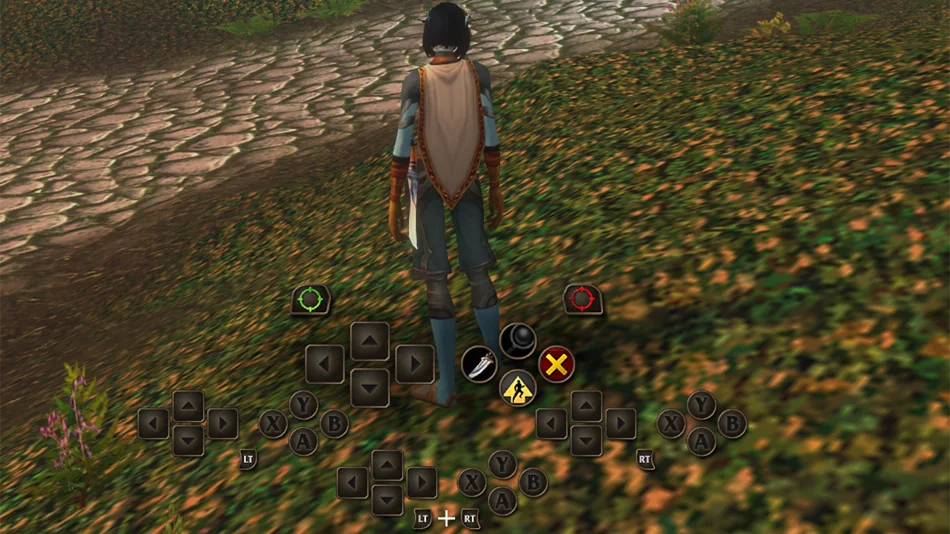
Launch Forever through Battle.net, enable the built-in gamepad interface and choose four class actions you can reach during a fight.
From Desktop Mode to Azeroth
- Install the launcher. Switch to Desktop Mode, open Discover and install Lutris. In Lutris, use the Battle.net installer and sign in. If you already run Battle.net through Lutris, open that existing entry.
- Select Forever. Open World of Warcraft in Battle.net, select the Forever version, finish its install and launch once from the desktop. In Lutris, use Create Steam shortcut on the installed launcher. Return to Gaming Mode and open it from your non-Steam library.
- Enable gamepad controls. In the game menu, open Options → Gameplay → Gamepad. Select gamepad input, then configure action bars, targeting and the HUD modifier. Use Steam + X when chat or sign-in needs text.
Plan your action bar
Suggested bindings for learned abilities. Keep A and B available for your preferred jump and interact controls; assign LT as your modifier if you use this layout.
- X
- Arcane Shot
- Y
- Concussive Shot
- LT + X
- Pet Attack
- LT + Y
- Mend Pet
Keep Pet Attack separate from your own shot so you can pull the pet back before it starts a second fight.
Open Hunter builds →Try your layout before entering a dungeon
Use a quiet area and check that one press fires one action. Hold your modifier while steering, release it, then press the same face button again. If both presses cast the same spell, check the modifier assignment before moving other spells.
- Hunter: send your pet to a single target, recall it, then check you can use Mend Pet without changing your own target.
- Mage: cast Frostbolt, move sideways, then press Blink while keeping your thumb on the movement stick.
- Paladin: select a friendly target, cast Holy Light, then switch back to an enemy. Put friendly targeting within reach if that switch takes too long.
When a control stops working
The launcher works, but my buttons move the mouse
Open the game shortcut’s Steam controller layout and choose a gamepad template. Back in WoW, select gamepad input. Test the action bar and camera in a quiet area before changing individual spell bindings.
I can target enemies but can’t heal a party member
Open the Gamepad targeting and raid targeting options. Bind a friendly-target control, select a party portrait and test a heal. Then switch to a hostile target and check the action bar again.
Gaming Mode reopens the installer
Return to Lutris in Desktop Mode. Launch the installed Battle.net entry first, then create the Steam shortcut from that entry. Keep the working game installation when replacing the shortcut.
Blizzard describes Forever’s XInput gamepad support as beta. The installation steps combine the published Lutris and Valve workflows; the class layouts are editorial suggestions. BuildForgeTools has not tested these bindings on Deck hardware. Reviewed November 15, 2026.
Blizzard gamepad settings · Valve Desktop FAQ · Player’s Deck experience